For administrators
As an administrator you hold the door: who joins your organisation's Portal, what role they carry, and which projects they can write to. Everything happens on the People tab.
Inviting someone
People → Invite people. Enter their e-mail address; the Portal sends the invitation and shows where the address will land:
- A work address at your organisation — the normal case. They sign in with their own work account.
- A personal address (outlook.com, gmail.com, …) — allowed, but the Portal asks you to confirm it per invitation: a personal mailbox is only as verified as the address you typed, so the confirmation is you saying "I checked this is really them".
- No Microsoft account at all — they sign in with an e-mail code, sent at each sign-in.
The invitation e-mail comes from Microsoft; the redemption link in it is single-use.
Approving
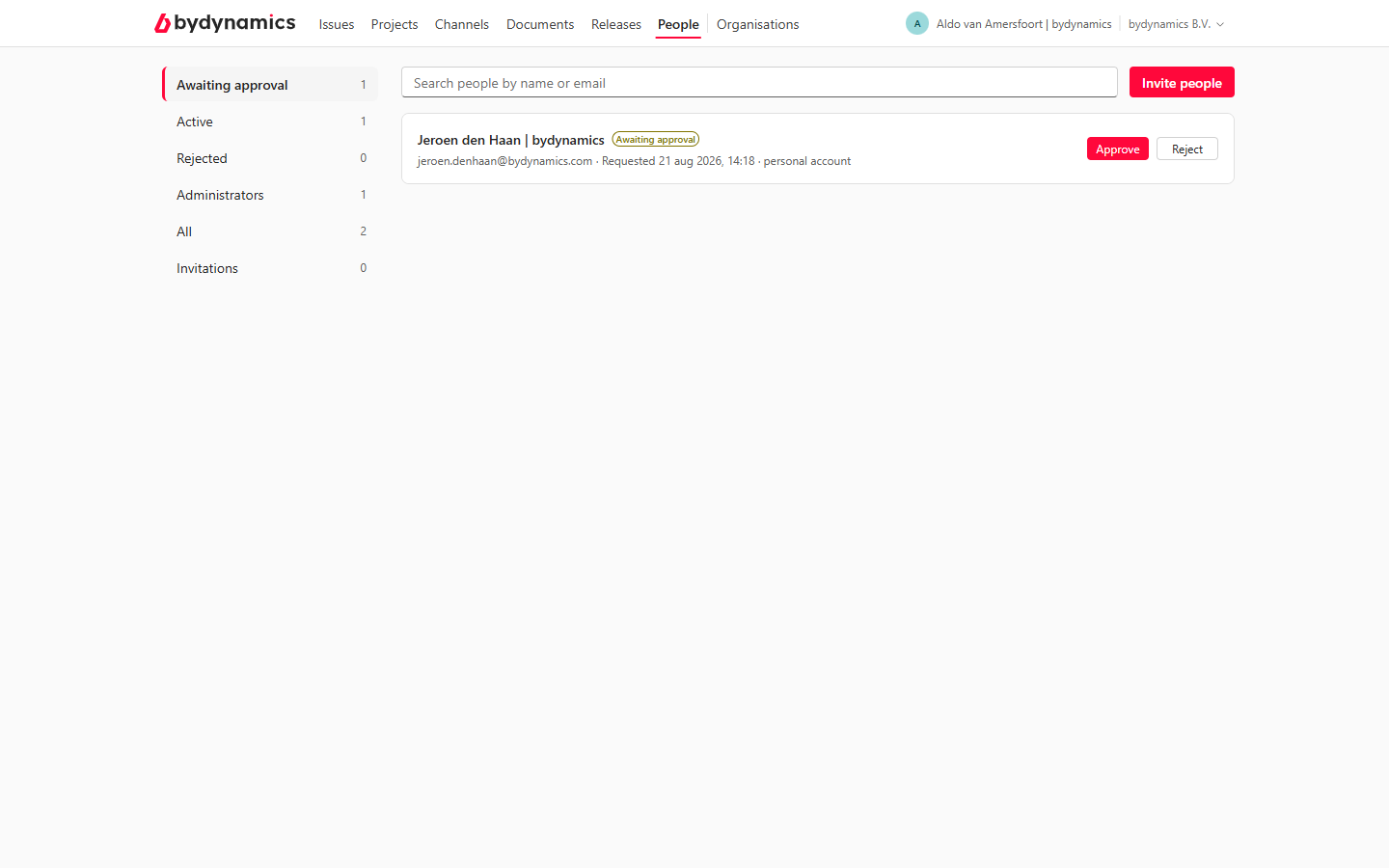
New sign-ins from your domain wait for you: People → Awaiting approval lists them with an approve/decline decision per person. The Portal never admits anyone to your organisation on its own.
Roles
Per person, on their row:
- Member — reports and reads issues, follows projects, uses everything.
- Admin — additionally manages people, approvals and roles. Give this to the people who own the relationship.
Project access
Per person and per project, the same row offers the project role — Projects: Read or Projects: Write (what they mean). The dropdown is the decision; there's nothing else to configure.
What everyone can read
Every member of your organisation reads every issue your organisation has reported — issues are a shared record by design. Keep that in mind when deciding who to invite, and remind reporters: no personal data in issues or screenshots.
Consultants and outsiders
Someone outside your domain — a consultant, a partner employee — can be invited by e-mail address exactly like anyone else; the per-invite confirmation applies. They become a member of your organisation's Portal, with the role you give them, and you remove them the same way when the engagement ends.